
Operator console
every pane of Setup.
SOLSCOPE has no separate admin panel. Everything that changes behaviour or revenue is set in the app's Setup tab, pane by pane, and can then be published as one JSON file for every install.
01How the console works
Open the Setup tab. Each control says what it changes and checks what you type: a fee rate reminds you that basis points are not a percentage, a fee account names the character that is not base58. Values you save are stored on this device and reported as Set here.
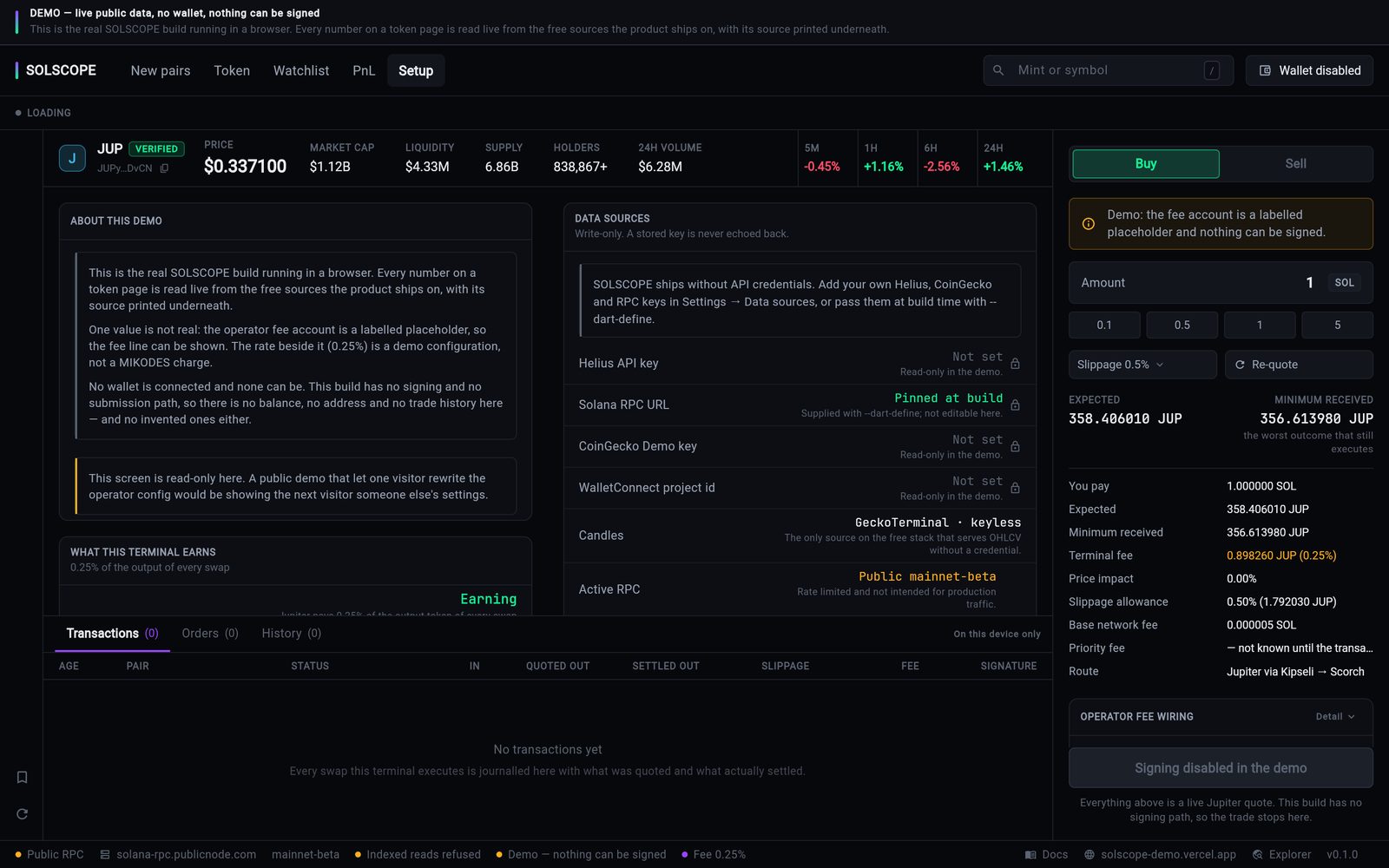
A value set in Setup only changes this one install. To configure every install, publish your settings at a config URL (Config source); to make the fee impossible to change on a device, pin it at build time (Build defines).
Day-one order
- Data sources: your RPC URL and keys.
- What this terminal earns: rate and fee account, until the status reads Earning.
- Trading defaults and the swap disclaimer.
- Effective configuration: check every value, then Copy as JSON.
02What this terminal earns
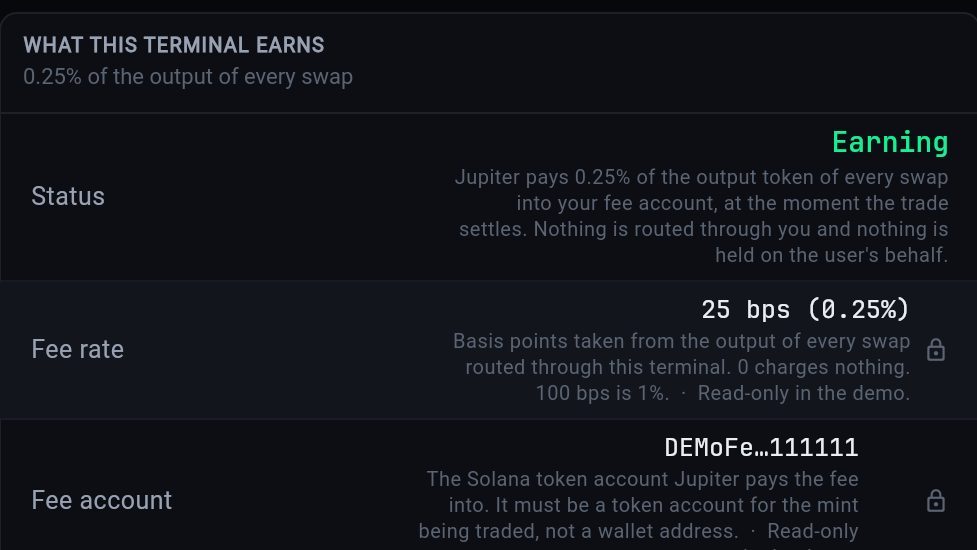
| Field | Key | What it does |
|---|---|---|
| Fee rate | fee_bps | Basis points of the swap output. 100 = 1 %. 0 charges nothing. The console warns above 100 bps; Jupiter's ceiling is 10000. |
| Fee account | fee_account | The Solana token account Jupiter pays into (read this first). |
| Fee switch | fee_enabled | Master switch over both. Off sends no fee at all. |
| Status | — | Earning only when rate and account are both valid; otherwise Off with the reason, for example "A rate with no account collects nothing". |
03Data sources
Your keys: Helius API key, Solana RPC URL, CoinGecko Demo key and WalletConnect project id. Values are write-only: they go to the platform keystore and the row shows Set, Not set or Pinned at build. The WalletConnect id is stored but the relay is Not active in this version.
What is answering right now: which source serves the candles (GeckoTerminal, keyless), the Active RPC (your operator endpoint or the public fallback) and whether Indexed reads are served or refused by that endpoint.
04Product switches
| Switch | Key | Default |
|---|---|---|
| Swaps | swap_enabled | On |
| New-pair feed | new_token_feed_enabled | On |
| Alerts | alerts_enabled | On |
| Paid listings | paid_listings_enabled | Off. The promoted rows themselves come only from promoted_mints in your config JSON. |
05Trading defaults
- Default slippage (
default_slippage_bps, 50 = 0.5 %): what the swap panel opens with. - Slippage ceiling (
max_slippage_bps, 500 = 5 %): the most a user can choose. Both are clamped to 1–5000. - Swap disclaimer (
swap_disclaimer): extra text on the swap confirm.
06Operator control
- Maintenance mode and Maintenance message: a full-screen stop. The pane shows a Stopped badge while it is on. Cannot be pinned at build time, so it always works remotely.
- Minimum version: a dotted version such as
1.2.0; older builds are asked to update. Empty lets every build in. - Announcement and Announcement link: a banner and the full
https://URL it opens. - Blocked mints: one mint per line, or comma separated. Hidden from discovery; still openable by direct address, with the reason shown.
- RPC override (
rpc_url): moves every install to a new endpoint without a new build.
07Config source
Optional. Shows the Config URL this install reads, whether the config is Fetched this session, cached, Supplied in process or the Shipped defaults, and a Reload button. The app fetches the document once at launch and whenever you press Reload.
08Effective configuration
Every value this build is running right now, field by field, with the layer it came from. Two actions:
- Copy as JSON: your console settings as exactly the document to serve at your config URL. If the browser refuses the clipboard, the text is shown to select by hand.
- Clear local edits: removes everything set on this device, so the config URL and defaults apply again.
The Product rows show the version and bundle ID of the build.